🔧 Advanced Dead Boot Repair for Moto G04s (XT2421-8)
Last Updated: September 2025
If your Moto G04s (XT2421-8) is stuck in a dead boot state and won’t turn on, you’re not alone—and this guide is here to help. Many users encounter this problem, especially when using unsupported or free flashing tools, which may corrupt the phone’s system files or even cause serious issues like IMEI loss.
This guide offers a detailed, step-by-step, and advanced approach to fixing dead boot issues while also highlighting critical warnings to avoid further damage.
✅ What is Dead Boot?
A dead boot occurs when your phone fails to boot into the operating system. It may get stuck on a black screen, Moto logo, or simply not respond. This condition can result from software corruption, incomplete flashing, or hardware faults, and if mishandled, it could lead to permanent damage—including IMEI problems.
✅ Why Dead Boot Happens – Especially When Using Free Tools
Dead boot frequently occurs when users attempt to connect the phone in SPD mode using unsupported or free tools. These tools may send incorrect commands like FRP remove or reset commands that don't match the firmware files of your device. This mismatch can corrupt your phone’s system, causing dead boot and later IMEI issues.
⚠ Important: Before using any flashing tool—especially free tools—make sure you fully understand the process. Using the wrong tool or command could permanently damage your device.
✅ Common Causes of Dead Boot on Moto G04s
- Software update failure
- Incorrect or incomplete flashing
- Malware or virus corruption
- System errors or crashes
- Unsupported tools sending wrong commands
- Hardware faults like battery issues
- IMEI corruption due to improper flashing
✅ Important Warnings Before Proceeding
- Do not attempt flashing using unsupported or free tools without proper knowledge
- Understand that incorrect flashing may result in IMEI loss
- Use only trusted tools like AMT, Cheetah, or official flashing methods
- Always backup your data before attempting repairs
- If hardware faults are suspected, consult a service center immediately
✅ How to Fix Dead Boot – Advanced Step by Step
1️⃣ Force Restart First
- Press and hold Power + Volume Down buttons together for at least 10–15 seconds.
- The phone may restart and fix minor dead boot problems.
2️⃣ Enter Recovery or Fastboot Mode
- Power off the phone completely.
- Press and hold Volume Up + Power buttons together until the logo appears.
- Release the buttons.
- The phone enters Fastboot Mode, not regular recovery.
3️⃣ Flash Stock Firmware (For Advanced Users)
If recovery mode doesn’t solve the issue, flashing stock firmware becomes necessary. However, note the following:
Tools You Can Use:
- SPD Flash Tool
- AMT Tool / Cheetah Tool (Paid Tools)
- Official Fastboot Firmware
- Pandora Box (for IMEI repair)
Files Needed:
- Stock firmware (PAC file or Fastboot file)
- USB drivers installed on your computer
- A working PC and USB cable
Flashing Process (For Experts):
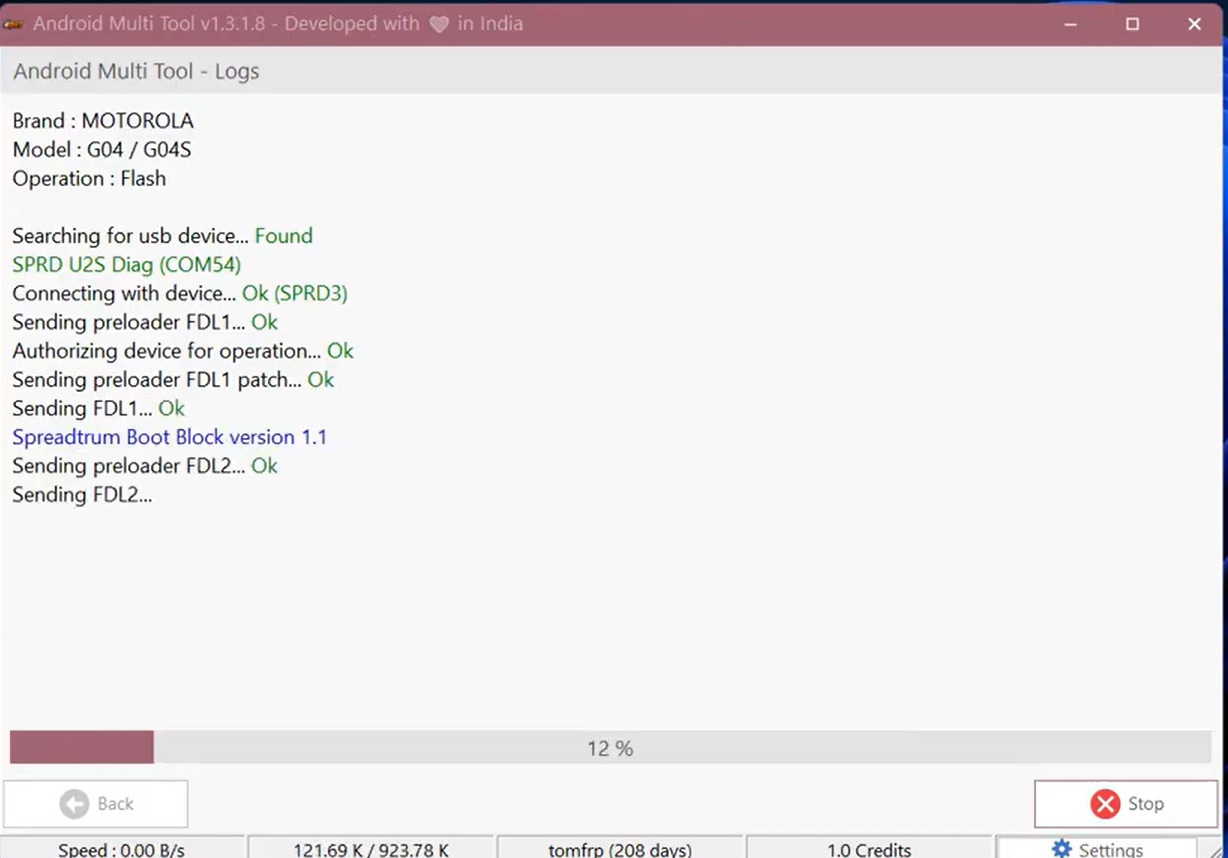
- Install all necessary drivers.
- If your phone only shows SPD port (DEAD):
- First, flash the PAC file using AMT, Cheetah, or similar paid tool.
- After flashing, the phone may hang at the logo.
- Then, flash the Fastboot file using
flash.allin Fastboot mode. - ⚙ Warning: This process will erase your IMEI and may require paid tools or Pandora Box to repair it.
- Watch full tutorial videos before proceeding with IMEI repair.
4️⃣ Check Battery Health
- Try a different charger and cable.
- Inspect for swelling or damage.
- Replace the battery if necessary.
5️⃣ Visit an Authorized Service Center
If you’re unsure about flashing or if hardware faults are involved, take your phone to a certified service center to prevent further damage.
✅ How to Avoid Dead Boot Issues in the Future
- Use trusted and verified flashing tools
- Avoid random free tools or unofficial commands
- Always check compatibility before flashing
- Keep your device charged and avoid overheating
- Protect your phone with antivirus software
- Backup important data regularly
✅ Conclusion
Dead boot issues on the Moto G04s (XT2421-8) can be challenging but are fixable with the right tools and knowledge. However, improper handling—especially using free or unsupported tools—can result in irreversible damage like IMEI loss.
If you're not confident, always consult a professional technician before attempting advanced flashing.
📌 Disclaimer
Videos and tutorials provided are strictly for educational purposes. They aim to assist users who forget passwords, face FRP issues, or experience software-related problems. We do not support or encourage illegal activities such as unlocking stolen phones or bypassing security without authorization. Any misuse is the sole responsibility of the user.
✅ Share Your Experience!
If you’ve successfully repaired your phone or need assistance, drop your comments below. Let’s build a community where we help each other solve mobile problems safely and efficiently!