Samsung FRP Bypass 2025: Remove Google Lock on Android 14/15 (100% Free Method)
Did your Samsung phone get stuck on the "Google Account Verification" screen after a factory reset? This is known as the FRP (Factory Reset Protection) lock. Don’t worry! In this guide, we’ll show you a completely free and official Samsung FRP Bypass method to remove the lock on any Samsung device running Android 14 or Android 15—right from your home.
Many people sell this same method under names like "Modified FRP File", but it’s actually 100% free. Follow this guide carefully and you won’t need to pay anyone.
Before You Start: 3 Critical Things to Know
Before beginning the process, understand these three important points. Skipping them could damage your device.
1. What is KG Status (Knox Guard)?
KG Status is a Samsung security feature, often found on financed phones. Checking it is the first step.
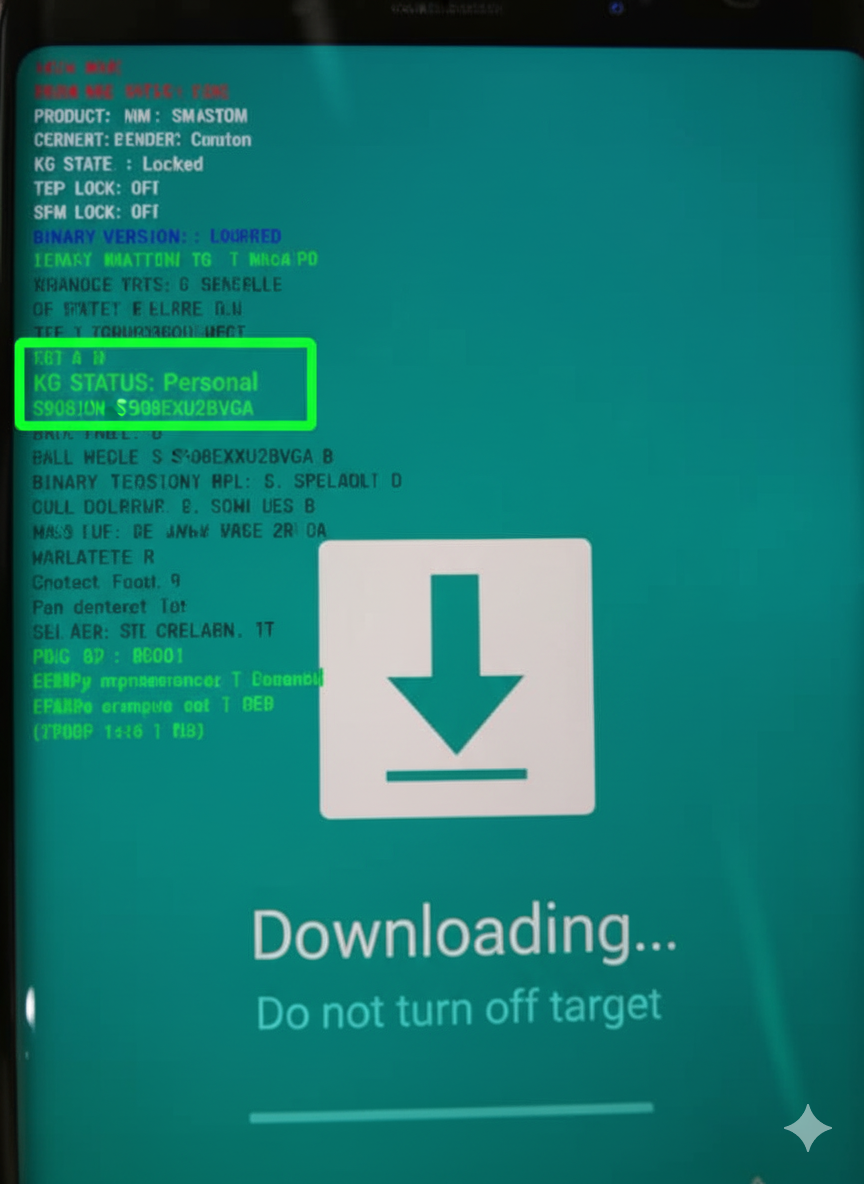
- How to Check: Boot your phone into Download Mode.
- Status Meaning:
- ✅ KG Status: Personal or Active – Safe to flash firmware.
- ❌ KG Status: Locked – Warning! Do NOT flash. Flashing a locked device can corrupt the software and brick your phone.
2. Understand the Binary Version
The binary version is the software build number of your phone. Flashing the wrong binary will fail.
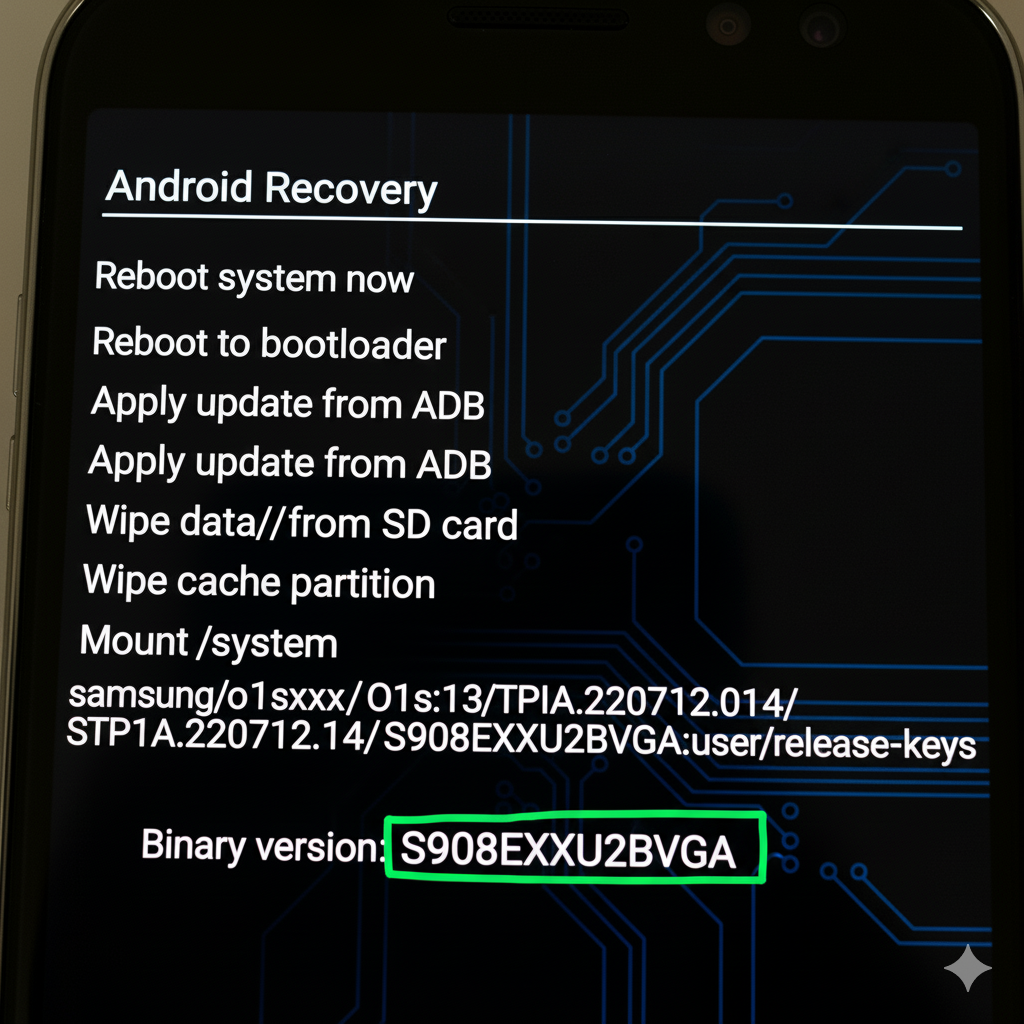
- How to Check: Boot your phone into Recovery Mode and note the binary version.
- Golden Rule: You can flash the same or higher binary, but never a lower one (no downgrades).
Required Tools & Files
Before starting, make sure you have all the following tools and files downloaded:
- Firmware (Flash File): Correct firmware matching your phone model and binary version.
- Odin Flash Tool: The official Samsung flashing tool.
- Samsung USB Drivers: Required for your computer to detect the phone.
Step-by-Step Guide to Remove Samsung FRP Lock
Pro Tip: Correct Odin File Placement
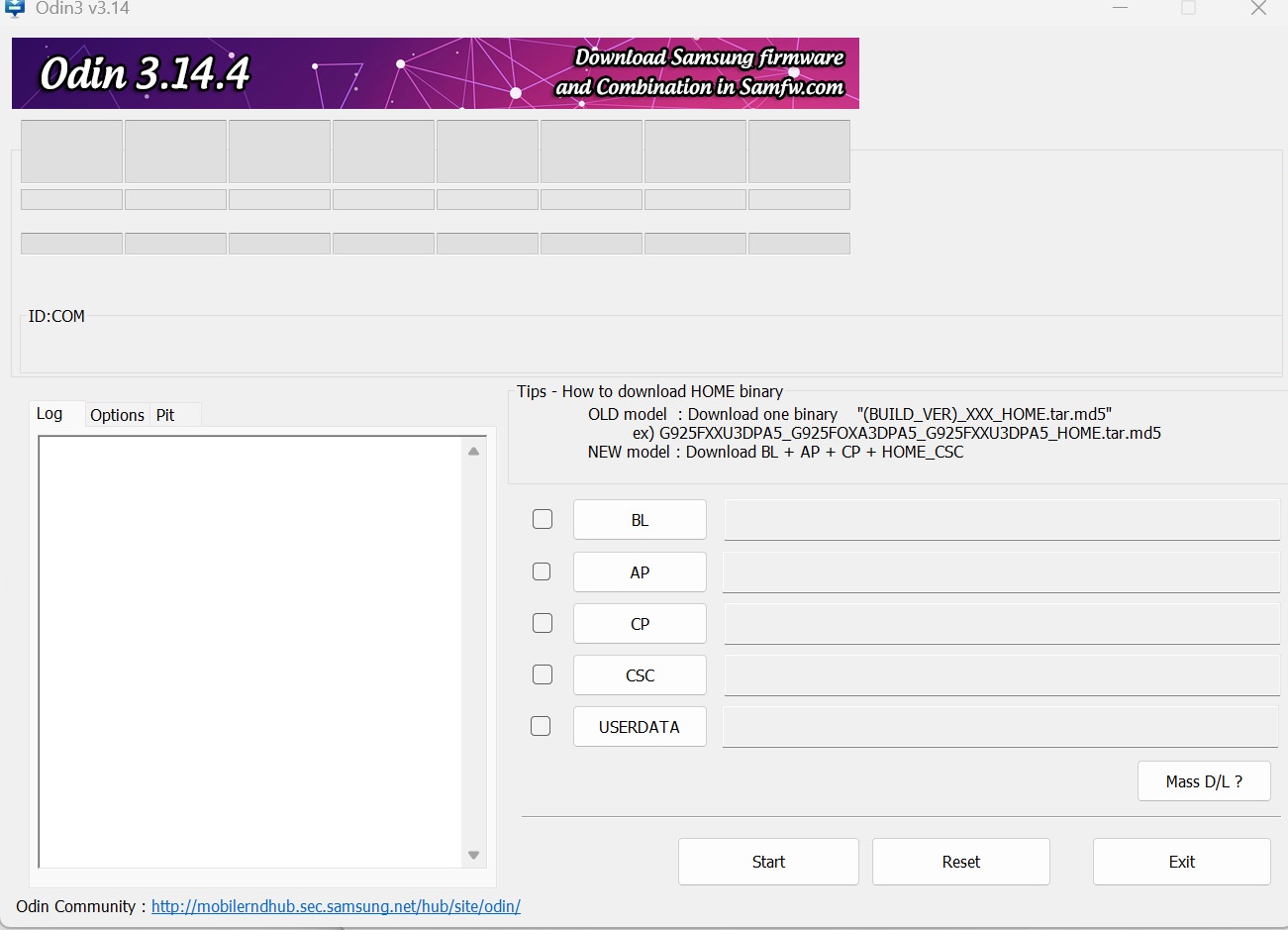
While flashing, you must load the correct files into the correct Odin slots as shown in the image below. Pay special attention to the HOME_CSC file—this is the key to bypassing FRP.
- Step 1: Downgrade to Android 14
- Download the Android 14 firmware with the same binary from SamFW.
- Use Odin to flash your phone to Android 14.
- Step 2: Upgrade Back & Bypass FRP
- Now download the Android 15 firmware.
- In Odin, load BL, AP, CP files and select HOME_CSC instead of CSC.
- After flashing, your phone will boot without asking for a Google account.
Frequently Asked Questions (FAQ)
Q1: Will this process erase my data?
A: Yes. Flashing with CSC files will wipe all data (photos, videos, contacts) from your phone.
Q2: Is this method safe?
A: Yes, it’s completely safe as long as you use the correct firmware and binary version for your exact model.
Q3: My KG Status is "Locked." What should I do?
A: Unfortunately, if KG Status is locked, you cannot use this flashing method.
Important Notice: Proceed at your own risk. Flashing the wrong file or skipping steps may brick your phone. If unsure, seek help from a professional technician.